

SMARTPay powered by BiMPay
〰️
SMARTPay powered by BiMPay 〰️
Register for the BiMPay Wallet!
1. Download the BiMPay App
Visit the Apple App Store or Google Play Store and search for BiMPay.
Download and install the app on your smartphone, then open it to begin registration.
2. Register & Verify your Contact information
Follow the instructions to enter your mobile number including the area code and then review and accept the terms and conditions. A verification code will be sent to your phone, which you will need to enter into the BiMPay App.
Then enter your email address. You will also need to verify this using the verification code sent to your email.
3. Set Your Password
Create and confirm your password. It is best not to use an account associated with your credit union account.
Enable biometrics and device unlock. The app will use your device’s existing unlock method (pin, password or biometrics) for a secure and easy login. The BiMPay app does not access or store these security credentials, so your information remains protected.
4. Step 4: Link Your Credit Union Account
Once your password is set, hit continue and choose the “I want to link my BiMPay Wallet to my existing account” option.
Select AffinityPlus Credit Union and verify your account by entering your National ID number
You will then need a unique linking code/ token from the AffinityPlus online banking home page to complete this process. (See Link Your AffinityPlus account instructions below).
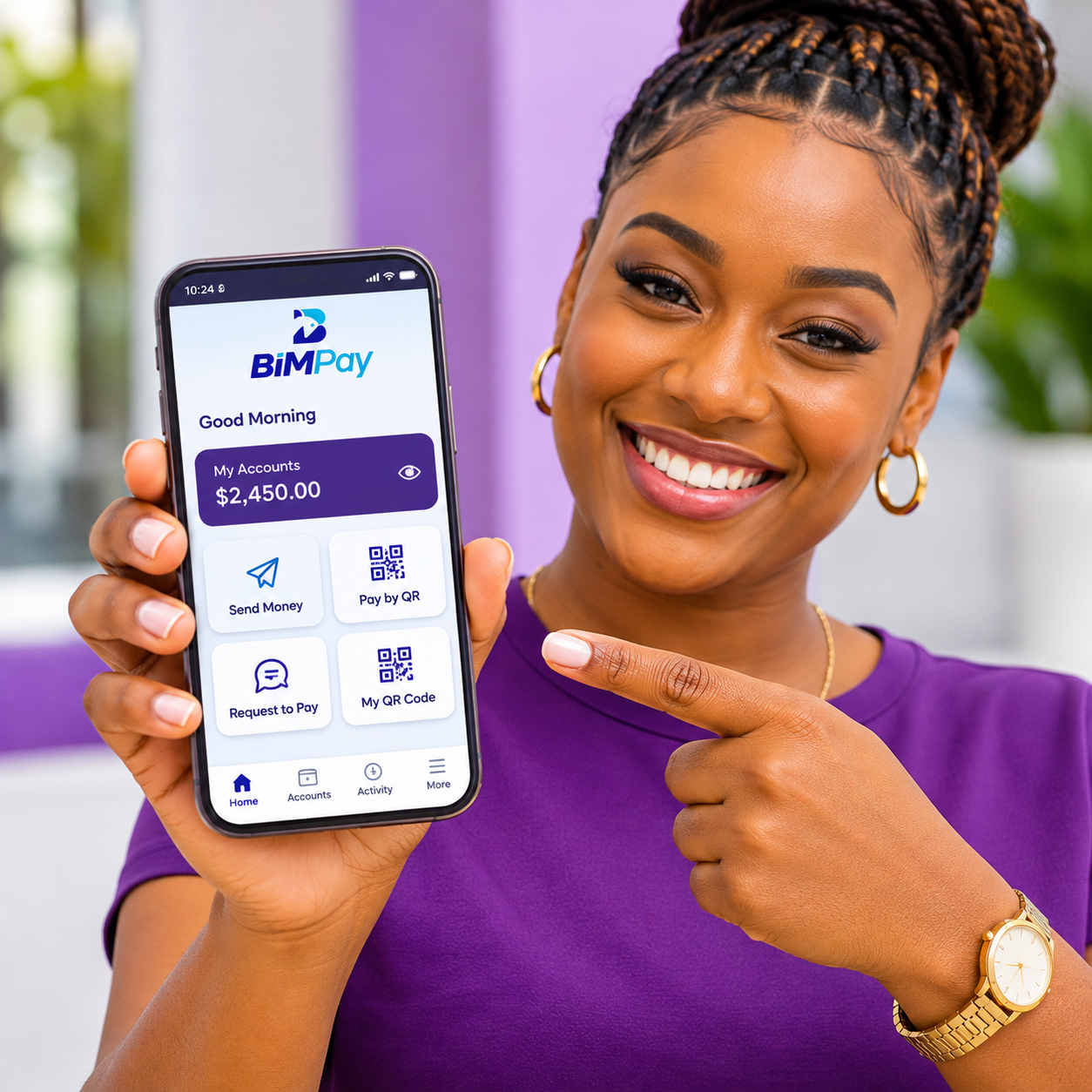
Get Your BiMPay Linking Code (Token)
1. Log in to AffinityPlus Online Banking or the Mobile App
Log in using your usual credentials. On your home screen, look for the “Connect to BiMPay” banner at the top of the page
Select “Get linking code.”
2. Copy Your Unique Linking Code
A pop-up window will display your unique linking code/ token.
Simply select the copy icon beside the code to copy it.
The linking code is time-sensitive, so be sure to use it before it expires.
3. Complete Your Account Linking in BiMPay
Return to the BiMPay app.
Under Account Linking, paste the linking code copied from AffinityPlus Online Banking or the Mobile App and hit continue.
Once validated, registration is complete, you're ready to explore the convenience of your BiMPay Wallet.
Need a new code?
No problem! If your code/token expires or you need another one, simply return to AffinityPlus Online Banking or the Mobile App and select “Get New Code.”
Then copy the new code and enter it under Account Linking in the BiMPay app.
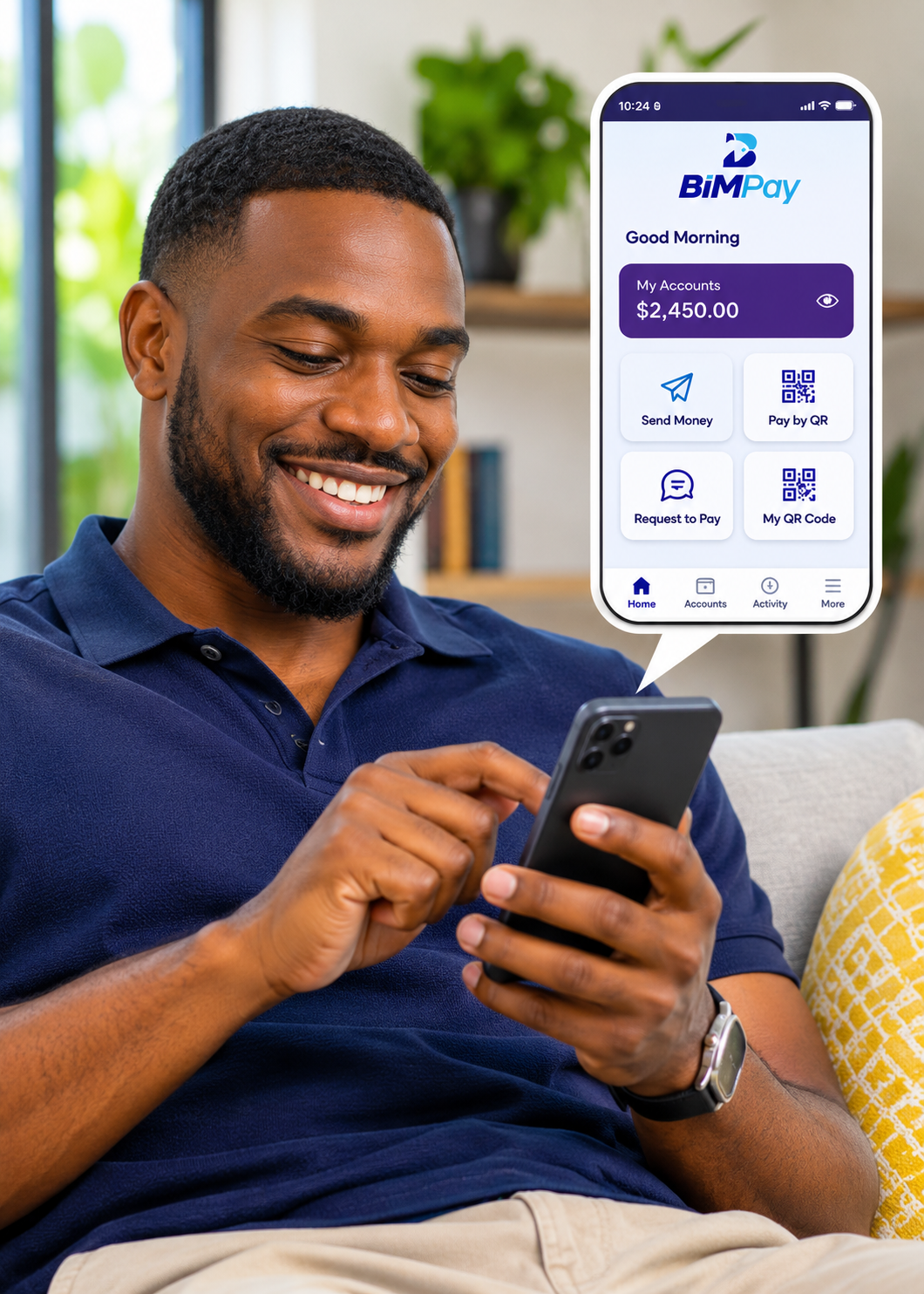
How to Use the BiMPay eWallet
Logging In and Navigating the App
Open the BiMPay app on your smartphone.
Log in using the security method enabled on your device, such as fingerprint recognition, facial recognition, PIN, or password.
Once logged in, you can access your profile and account information. From your profile page, you can:
Manage your notifications.
View and manage linked devices.
Access support.
Update your account settings.
View your linked accounts.
Generate your personal QR code to receive payments.
Privacy tip: Tap the eye icon to hide your account balances when using the app in public.

Making a Payment Using a QR Code
Paying with a QR code is quick and convenient. Simply:
Open the BiMPay app.
Select the option to scan a QR code.
Scan the QR code provided by the person or business you wish to pay.
Enter the payment amount.
Review the payment details carefully to ensure they are correct.
Tap Pay to complete the transaction, following any security prompts.
Sending Money to Someone
Open the BiMPay app and select the option to send money.
Enter the recipient's mobile phone number or select the person from your phone's contacts.
If you enter a mobile number, the recipient's registered name will appear on the screen.
Check the recipient's name carefully to confirm you're sending money to the correct person.
Enter the amount you wish to send.
Select the account you wish to pay from.
Review the transaction details.
Authorize the payment using your fingerprint, facial recognition, PIN, or password.
Once the payment is successful, you'll receive confirmation.
Need proof of payment? You can generate and share a transaction receipt directly from the app.
Receiving Money
Share your BiMPay-registered mobile number with the person sending you money.
The sender initiates the transfer through their BiMPay app.
Once the transfer is completed, the funds will be reflected in your account balance.
You'll receive a payment notification and transaction receipt in the app.
You can also receive payments by sharing your personal BiMPay QR code for someone to scan.
Requesting a Payment (Request to Pay)
Need someone to send you money? You can send them a payment request directly through BiMPay.
Open the BiMPay app and select Request to Pay.
Select the person from whom you wish to request payment. (Remember to allow the BimPay app full or limited access to your contacts)
Enter the amount you would like to receive.
Add a description of the payment if you wish.
Review the details and send your request.
Your request will remain Pending until the recipient approves it.
Once the recipient approves and completes the payment, the funds will be reflected in your account balance.
You'll receive a notification confirming receipt of the funds.
You can also generate a QR code that the other person can scan to make the payment.
Approving or Rejecting a Payment Request
If someone sends you a Request to Pay, you decide whether to accept it.
Open the BiMPay app and locate the incoming payment request.
Review the name of the person requesting payment, the amount and any description provided.
Select “Approve“ if you agree to make the payment or “Reject” if you do not.
If you approve the request, follow the prompts to authorize the transaction using your fingerprint, facial recognition, PIN, or password.
Once successfully authorized, the payment will be processed.
Never approve a payment request you do not recognize or were not expecting. Always verify the recipient and amount before authorizing a transaction.
Viewing Your Transaction History
To check a BiMPay app payment or review your recent activity in the app:
Open the BiMPay app and go to your transaction history.
Select the account you wish to review.
Switch between your principal and savings accounts, where applicable.
Browse your transactions or use the search and filter options.
You can search by amount or specify a date range to find a particular transaction.
Select a transaction to review its details.
Your BiMPay transaction history displays transactions made through the BiMPay app only. It does not represent your full AffinityPlus account transaction history.
Generating and Sharing Transaction Statements
If you need a record of your BiMPay activity, you can generate a statement directly from the app as follows:
Open the BiMPay app and navigate to the statements feature.
Select the account and statement period or enter your preferred date range.
Generate your statement.
Download the statement to your device.
If needed, use the available sharing option to send a copy.
Statements generated through BiMPay reflect transactions completed using the BiMPay app only. For your full account statement, please use AffinityPlus Online Banking or the AffinityPlus Mobile App.
Keeping Your BiMPay Transactions Secure
To ensure the security of your account remember to:
Protect your phone with a secure PIN, password, or biometric authentication.
Always verify recipient details before sending money.
Review payment requests carefully before approving them.
Never share your PIN, or codes or any passwords with anyone.
Use the eye icon to keep your account balances private when using the app in public.
Review your payment notifications and transaction history regularly and report any suspicious activity to AffinityPlus Credit Union.
Key Points to Remember
1. Two apps, one convenient connection: You can send and receive money instantly to and from all the banks in Barbados as well as participating credit unions using the AffinityPlus Online Banking platform or Mobile App.
To take advantage of additional digital payment services such as QR code payments, and Request to Pay services, you will need to download the BiMPay app, connect to obtain your linking code/ token, then complete the process in the separate BiMPay app.
2. Keep your information secure: Never share your passwords, PINs, or link codes/ tokens with anyone.
3. Check your contact details: Ensure your mobile number and email address registered with AffinityPlus are up to date before you begin.
4. Code expired? Simply generate a new linking code through AffinityPlus Online Banking or the Mobile App.